Intune can switch BitLocker on and escrow the recovery key to Entra ID, but it has no setting that asks the person at the keyboard for a pre-boot startup PIN. This guide explains why, and how our open-source Intune Win32 app collects that PIN from a standard user through ServiceUI.exe, without making anyone a local administrator.
In short
- Adding a startup PIN needs administrator rights, and the Intune process that has them runs in session 0, where nobody can see a prompt.
- The app shows its PIN dialog as SYSTEM on the user's desktop through
ServiceUI.exe, so it has the rights and a keyboard at the same time. Microsoft's Intune documentation calls that technique unsupported, so read the security section before you decide. - It adds the TPM+PIN protector before it removes the TPM-only one. A TPM-only protector left behind makes Windows skip the PIN at boot.
- Intune's Installed status only means the mechanism is in place. A Remediations pair reports which devices really ask for a PIN.
- A forgotten PIN still needs the recovery key once. After that, the user who enrolled the device can reset the PIN from the Start menu.
Why Intune cannot simply ask for a BitLocker startup PIN
A startup PIN is a form of BitLocker pre-boot authentication. It is a key protector of the type TPM+PIN, called TpmPin in PowerShell, and it replaces the TPM-only protector (Tpm), which unlocks the drive without asking anyone. Windows asks for the PIN before it loads, so a lost or stolen laptop is not only encrypted: it cannot be started. Intune's disk encryption policy can allow or require the TPM+PIN protector, but it cannot create one, because only the user knows the PIN. Two walls stand between the user and BitLocker:
- Adding a key protector needs administrator rights. Most people are standard users on their own devices, so nothing running as the user can add the protector.
- The process that has those rights cannot show anything. A Win32 app that Intune installs in the system context runs as SYSTEM in session 0, which has no interactive desktop. A prompt opened there never appears, and
manage-bde -changepinrun from a Win32 app does not fail loudly. It silently does nothing.
The PIN therefore needs SYSTEM's rights and the user's desktop at the same time. Making users local administrators would solve the first problem by creating a much bigger one.
How the app gets past both walls
The Intune BitLocker PIN app splits the work between the two contexts.
- The installer runs as SYSTEM and shows nothing.
Install-BitLockerStartupPin.ps1is the Win32 app. It relaunches itself in 64-bit PowerShell, because Intune starts install commands as a 32-bit process and the BitLocker module is not available there on every Windows build. It checks the TPM and writes the BitLocker policy values that permit a TPM+PIN protector, after backing up the old values. It adds a recovery password if the system drive has none and escrows it to Entra ID. If either step fails, it still installs, and the dialog refuses to set a PIN until both are in place. Then it stages the dialog and registers a scheduled task. - The scheduled task puts the dialog on the user's screen. At logon and on every unlock, the task starts
Set-BitLockerPin.ps1throughServiceUI.exe, a Microsoft tool from the Microsoft Deployment Toolkit (MDT). ServiceUI attaches to the user'sexplorer.exeand borrows that session's desktop, while the process keeps running as SYSTEM. - The user chooses the PIN and SYSTEM applies it. Each time it runs, before the PIN fields appear, the dialog checks every precondition again: encryption, protection, the recovery password and its escrow. The PIN then goes from a
SecureStringstraight toAdd-BitLockerKeyProtector. It never reaches a file, a log or a command line.
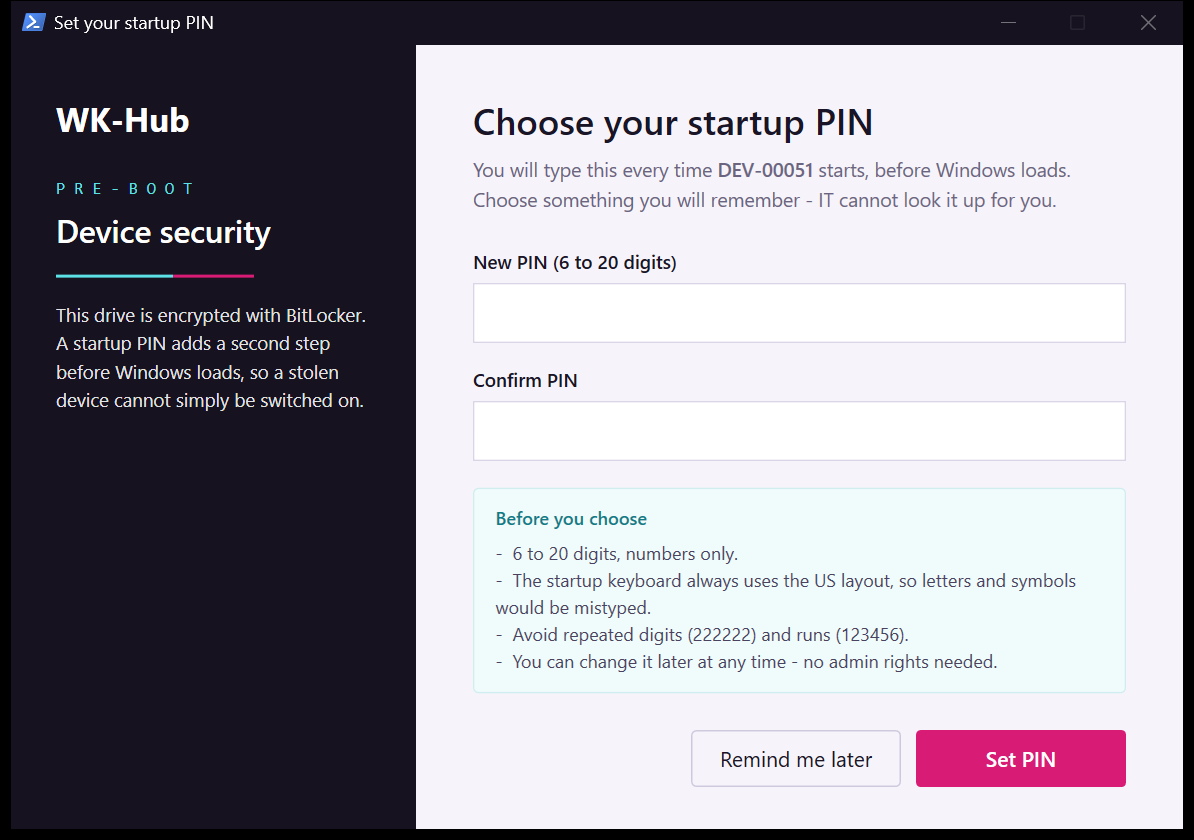
The dialog only draws on the console session, and it refuses to run when it cannot tell which session that is. With fast user switching or Remote Desktop, someone else could otherwise choose the PIN that the device's owner types at every boot.
The enrollment task runs ServiceUI with the action below, shown with the default organization name and -MinimumPin 6. In the task, the arguments are one line. ServiceUI strips double quotes from the command line it forwards, so no path in it may contain a space. That is why the payload lives in %ProgramData% and not in %ProgramFiles%. Quoting the powershell.exe path breaks it as well: the task then fails with 0x80070005. The reset task runs the same action with -Manage added.
Program:   C:\ProgramData\WK-Hub\BitLockerPin\ServiceUI.exe
Arguments: -process:explorer.exe C:\Windows\System32\WindowsPowerShell\v1.0\powershell.exe
           -NoProfile -ExecutionPolicy Bypass -WindowStyle Hidden
           -File C:\ProgramData\WK-Hub\BitLockerPin\Set-BitLockerPin.ps1
           -Organization WK-Hub -MinimumPin 6
The order that keeps every device bootable
Swapping a TPM-only protector for TPM+PIN looks like two commands. The order of those commands is the safety design. The dialog:
- validates the PIN and everything else it can check, before touching any protector;
- requires a recovery password that is escrowed to Entra ID;
- adds the TPM+PIN protector and confirms it exists;
- only then removes the TPM-only protector, and confirms that too;
- disables its own scheduled task.
Adding first is safe because of a rule Microsoft documents for the ProtectKeyWithTPMAndPIN method:
While it is possible to have both a key protector of the type "TPM" and another of the type "TPM And PIN", the presence of the "TPM" key protector type negates the effects of other TPM-based key protectors.
As long as both protectors exist, the device starts without a PIN, as it did before. If adding the PIN fails, nothing has been removed. Removing first would open a window in which only the 48-digit recovery password can unlock the drive. In practice, Windows' own Add-BitLockerKeyProtector deletes the TPM-only protector itself once the TPM+PIN protector has been added, so the dialog's removal step is a safety net.
Resetting a forgotten PIN is the one exception. A volume can hold only one TPM+PIN protector, so the app's reset removes the old one before it adds the new one. If the new protector then fails, the device falls back to TPM-only so that it still starts. The dialog tells the user that the computer now starts without a PIN, and the ordinary prompt returns at the next logon or unlock.
When a device skips the PIN
The same rule explains how a PIN rollout can fail without anyone noticing. If a TPM-only protector sits next to the TPM+PIN protector, for example because a script added the PIN through WMI directly, Windows never asks for the PIN. The device starts straight into Windows, yet its protector list still includes a PIN, so it looks correctly configured. Check a device from an elevated PowerShell:
(Get-BitLockerVolume -MountPoint $env:SystemDrive).KeyProtector |
    Select-Object KeyProtectorType
You want TpmPin and RecoveryPassword, and no Tpm. The Remediations pair described below checks this on every device, every day.
Is ServiceUI safe to use?
Decide this before you build anything, because ServiceUI is what makes this approach work: it puts a SYSTEM process on a standard user's desktop. If a window drawn that way lets the user open a file picker, follow a link or start a program, the user can end up with a program running as SYSTEM. A published proof of concept shows a standard user doing this from the folder picker of an installer that Intune ran through ServiceUI. That privilege-escalation risk is why PSAppDeployToolkit 4.1 no longer needs ServiceUI, and its maintainers advise admins to stop using ServiceUI as soon as possible.
Microsoft's Win32 app documentation also says that Intune does not support techniques, such as serviceui.exe, that force interaction with the signed-in user's session. The Win32 install itself needs no user, but the PIN prompt depends on ServiceUI, so that part sits outside Microsoft support.
This app limits what its SYSTEM windows can do:
- They contain text, PIN or password boxes and buttons. Nothing in them lets the user browse for a file, follow a link or start a program.
- The Windows Hello check for a reset does not run as SYSTEM at all. SYSTEM launches the verifier in the console user's session with that user's own token, and trusts its answer only when it arrives over a named pipe from that exact process and the exit code agrees.
- ServiceUI itself is pinned. The installer checks its signature and hash before it registers the task, and the payload folder is restricted to SYSTEM and Administrators.
That narrows the risk. It does not remove the trade-off: a SYSTEM process still draws on the user's desktop. If your security team does not accept that, this app is not the right tool. A design without that trade-off runs the dialog as the user and hands the PIN to SYSTEM over a protected channel, which is the model PSAppDeployToolkit 4.1 uses for its own dialogs. This app does not.
Check a device before you start
Rehearse recovery first. Once a device has a startup PIN, a user who forgets it needs the 48-digit recovery key to start the device. Make sure your service desk can find a device's recovery key in the Microsoft Entra admin center today, under Devices, the device, then BitLocker keys. If it cannot, stop here and fix that first.
The app needs x64 hardware with a TPM, running Windows 11, or Windows 10 1809 or later, joined to Entra ID or hybrid joined so the recovery key can escrow, and managed by Intune. The project lists TPM 2.0 as its requirement. To check a pilot device, run this in an elevated PowerShell. It only reads:
Get-Tpm | Format-List TpmPresent, TpmReady, TpmEnabled
Get-BitLockerVolume -MountPoint $env:SystemDrive |
    Format-List VolumeStatus, ProtectionStatus, @{n='Protectors';e={
($_.KeyProtector.KeyProtectorType) -join ','}}| Field | You want | If not |
|---|---|---|
TpmPresent, TpmReady | True | The TPM is missing or still being prepared. A device without a TPM cannot use a startup PIN. |
VolumeStatus | FullyEncrypted | Let your disk encryption policy finish first. |
ProtectionStatus | On | Protection is suspended. Resume it. |
Protectors | includes RecoveryPassword | Stop and find out why your encryption policy did not create one. Without a recovery password there is no way back in. The installer adds one if it is missing, and the dialog sets no PIN until it is escrowed. |
Seeing Tpm in the protector list is normal at this point. It is the TPM-only protector that the app replaces.
BitLocker policy settings that must agree
Split the work this way. Your Intune disk encryption policy turns encryption on, chooses the cipher and escrows the recovery key. The app collects the PIN and swaps the protector. It also writes the few policy values a PIN needs and adds a recovery password if the drive has none. Assign the encryption policy first, wait until the recovery keys are visible in Entra ID, and then assign the app.
If your policy forbids what the app creates, Intune writes your values back on every sync, and the app and the policy keep overwriting each other. Set these in the disk encryption policy that already owns BitLocker, under Operating System Drives. In the settings catalog, the same settings are under Administrative Templates > Windows Components > BitLocker Drive Encryption > Operating System Drives:
| Setting | Set it to | Otherwise |
|---|---|---|
| Require additional authentication at startup | Enabled | If it is Disabled, Intune writes UseAdvancedStartup = 0 on every sync. The dialog sets it back to 1 before each prompt, but a sync while the dialog is open makes the PIN add fail. |
| Configure TPM startup PIN | Allow startup PIN with TPM, or Require startup PIN with TPM. If the policy encrypts silently, see the note below. | Intune writes UseTPMPIN = 0 on every sync. The dialog sets it back to 2 before it adds the PIN, so the PIN is still created, but your policy and the device disagree. |
| Configure TPM startup | Allow TPM | With Require TPM, the BitLocker CSP reports every device that has a PIN as non-compliant, because that setting requires the TPM-only protector the app removes. With Do not allow TPM, the dialog overrides your policy for a moment each time it adds a protector. |
| Configure minimum PIN length for startup | Set the length in one place | The dialog uses the higher of the two values, but two values confuse support. Prefer the policy, and match -MinimumPin to it. |
| Allow enhanced PINs for startup | Disabled or not configured | The pre-boot keyboard always uses the US layout, so letters and symbols get mistyped. |
If your disk encryption policy encrypts new devices silently, choose Allow startup PIN with TPM. Microsoft documents that Require startup PIN with TPM stops silent encryption. Before you change the policy for every device, check that an unencrypted test device still encrypts.
The values live under HKLM\SOFTWARE\Policies\Microsoft\FVE. The installer backs them up before its first write and restores them on uninstall. UseAdvancedStartup becomes 1, and UseTPMPIN becomes 2, which means "allow". UseTPM becomes 2 only if no other policy has set it, and the installer never sets it to 0. It keeps stricter values it finds, such as UseTPMPIN = 1 or a longer minimum PIN. Whenever the dialog or the uninstaller adds a protector, it relaxes UseTPM and UseTPMPIN to 2 for that one call and then restores them. INTUNE.md lists every value, including the USB startup-key values the app leaves alone: writing those would fight the Intune BitLocker CSP on every sync, and silent encryption would fail with event 851.
Build and configure the Intune app
Get the two Microsoft tools
Neither tool ships with the app. Both are Microsoft binaries, so you supply them yourself and put them in the repository folder, next to the scripts. ServiceUI.exe (x64) comes from the Microsoft Deployment Toolkit, at C:\Program Files\Microsoft Deployment Toolkit\Templates\Distribution\Tools\x64\ServiceUI.exe. Microsoft retired MDT in January 2026 and no longer offers it for download, so take the file from a machine that still has MDT installed or from a copy your organization kept, and keep a copy yourself. Do not take ServiceUI from a third-party download site. IntuneWinAppUtil.exe is the Microsoft Win32 Content Prep Tool, released on GitHub as microsoft/Microsoft-Win32-Content-Prep-Tool.
ServiceUI becomes the entry point of a SYSTEM scheduled task, so the installer does not take it on trust. It checks the Microsoft Authenticode signature and a pinned SHA256 hash of the x64 build from MDT 8456, the final MDT build. If your copy comes from a different MDT release, the install fails and logs the hash it found. Confirm the file is genuine, then pass that hash explicitly. Loosening or deleting the check is the wrong fix.
.\Install-BitLockerStartupPin.ps1 -ServiceUiSha256 '<SHA256 OF YOUR SERVICEUI.EXE>'Choose your organization name
-Organization names the registry key, the folders, both scheduled tasks and the event source. It defaults to WK-Hub and must not contain spaces, because ServiceUI strips quotes. The detection and remediation scripts take no arguments, so change the default in all seven scripts together, as step 3 of the quick start shows, then run Test-BitLockerPinApp.ps1 to catch a half-finished rename.
Package and upload
The Source folder is a staging folder, not a second copy of the repository. Copy the current scripts into it every time you package, or an edited script you forgot to copy ships the old version:
Copy-Item .\Install-BitLockerStartupPin.ps1,.\Uninstall-BitLockerStartupPin.ps1,`
          .\Set-BitLockerPin.ps1,.\BitLockerPin.Common.ps1,.\ServiceUI.exe `
          -Destination .\Source -Force

.\IntuneWinAppUtil.exe -c .\Source -s Install-BitLockerStartupPin.ps1 -o .\Output -q
In Intune, go to Apps > All Apps > Create, select the Windows platform and Windows app (Win32), and upload the .intunewin file.
| Field | Value |
|---|---|
| Install command | powershell.exe -NoProfile -ExecutionPolicy Bypass -File .\Install-BitLockerStartupPin.ps1 -MinimumPin 6 |
| Uninstall command | powershell.exe -NoProfile -ExecutionPolicy Bypass -File .\Uninstall-BitLockerStartupPin.ps1 |
| Install behavior | System |
| Installation time required | 15 minutes |
| Device restart behavior | No specific action |
| Requirements | x64, Windows 10 1809 or later |
| Detection | Custom script Detect-BitLockerStartupPin.ps1. Run as 32-bit process: No. Enforce signature check: No. |
Add -Organization YourName to the install command if you changed the name. If your ServiceUI.exe is not the MDT 8456 build, also add -ServiceUiSha256 and its hash, without quotes, or the install fails on every device with exit code 1.
The detection script checks the mechanism, not the PIN: a version under HKLM\SOFTWARE\WK-Hub\BitLockerPin at least as new as its own, Set-BitLockerPin.ps1, BitLockerPin.Common.ps1 and ServiceUI.exe in C:\ProgramData\WK-Hub\BitLockerPin, and the enrollment task, which may be disabled once a PIN is set. It does not look for a TpmPin protector, because a device is correctly installed long before its user sets a PIN. Re-upload it every time you replace the package. Both carry the same version number, and a mismatch causes either a permanent reinstall loop or devices stuck on an old build.
Return codes
The installer returns 0 as soon as the enrollment mechanism is in place, even before anyone has set a PIN and even while the drive is still encrypting. The PIN comes later, from the dialog, which checks every precondition each time it runs. Intune's default return codes already treat 1618 as Retry. If your list was edited, add it back.
| Code | Meaning | Intune type |
|---|---|---|
| 0 | The enrollment mechanism is installed. | Success |
| 1618 | The TPM is present but not ready yet, for example while it is still being provisioned. | Retry |
| 1 | A hard blocker, such as no TPM or a missing payload. Read install.log. | Failed |
Assignment and Autopilot
Assign the app as Required to a device group, starting with the 5 to 10 pilot devices described in Pilot, verify and roll back. Keep it off the Enrollment Status Page's list of blocking apps: there is no user to ask for a PIN during the ESP, and a retry code would hold the device on that screen until it times out. As a non-blocking required app it installs after the ESP, and the installer starts the dialog straight away. If the drive is still encrypting, the dialog stays silent and appears at the first logon or unlock after encryption finishes.
Report on real PIN coverage
The Win32 app can only report Installed or Failed. A device can show Installed for weeks while its user clicks Remind me later every morning. A separate Intune Remediations pair answers the question you care about. Remediations need a Windows Enterprise E3 or E5, Education A3 or A5, or Windows VDA per-user license for each device's user, so check your licensing first. Create the pair under Devices > Manage devices > Scripts and remediations:
| Field | Value |
|---|---|
| Detection script | Detect-BitLockerPinCompliance.ps1 |
| Remediation script | Remediate-BitLockerPinCompliance.ps1 |
| Run this script using the logged-on credentials | No |
| Run script in 64-bit PowerShell | Yes |
| Schedule | Daily |
A device counts as compliant only when all four of these hold: a TpmPin protector exists, no Tpm protector remains, protection is on, and a recovery password exists. When the script cannot read the volume it reports UNKNOWN and exits 1, so a broken query can never turn the whole fleet green.
The detection writes one line to the Pre-remediation detection output column, which you add under Columns on the remediation's Device status page. The line names the reason and the context. Here it is wrapped to fit:
NONCOMPLIANT: no startup PIN protector - user has not set a PIN | device=DEV-00051
volume=FullyEncrypted protection=On protectors=Tpm,RecoveryPassword recovery=yes
escrowed=yes pinSetOn=never pinChangedByUser=no app=3.3.0 task=Ready
That column separates the people who have not set a PIN from the devices that cannot take one. The remediation fixes only what a script legitimately can. It removes a stray TPM-only protector, but only when a recovery password exists, and it re-enables the enrollment task so the user is asked again. An unencrypted drive, a missing recovery password or suspended protection need a person, so it reports those and exits non-zero instead of pretending to fix them.
A compliance policy that requires BitLocker checks encryption, not a startup PIN, and it passes on a device that has never shown the dialog. If PIN state should affect compliance, use a custom compliance script. Do not mark devices non-compliant while users are still being asked to set a PIN, or people lose access because of a prompt they may not have seen yet.
What the user sees
Until a PIN is set, the dialog appears shortly after logon and after every screen unlock. Remind me later closes it, and it asks again at the next unlock, so it catches people when they come back to the machine instead of interrupting them on a timer. The dialog checks the PIN before anything changes:
- 6 to 20 digits by default. You can raise the minimum with
-MinimumPin. - Digits only, because the pre-boot keyboard always uses the US layout.
- Not one digit repeated, such as 222222, and not a run, such as 123456 or 654321.
Users who remember their PIN can change it later with Windows' own Change PIN option. Windows allows that by default, and the installer writes DisallowStandardUserPINReset = 0 to make it explicit. If a policy sets the value to 1, the installer does not override it, and users cannot change their PIN.
If the drive is not encrypted, the user gets an information-only notice instead. It says so plainly, says it is not something they can fix, and shows a short reference for the user to quote to the service desk. It appears at most once a day. Encryption still in progress and suspended protection stay silent, because warnings about states that fix themselves teach people to dismiss IT windows.
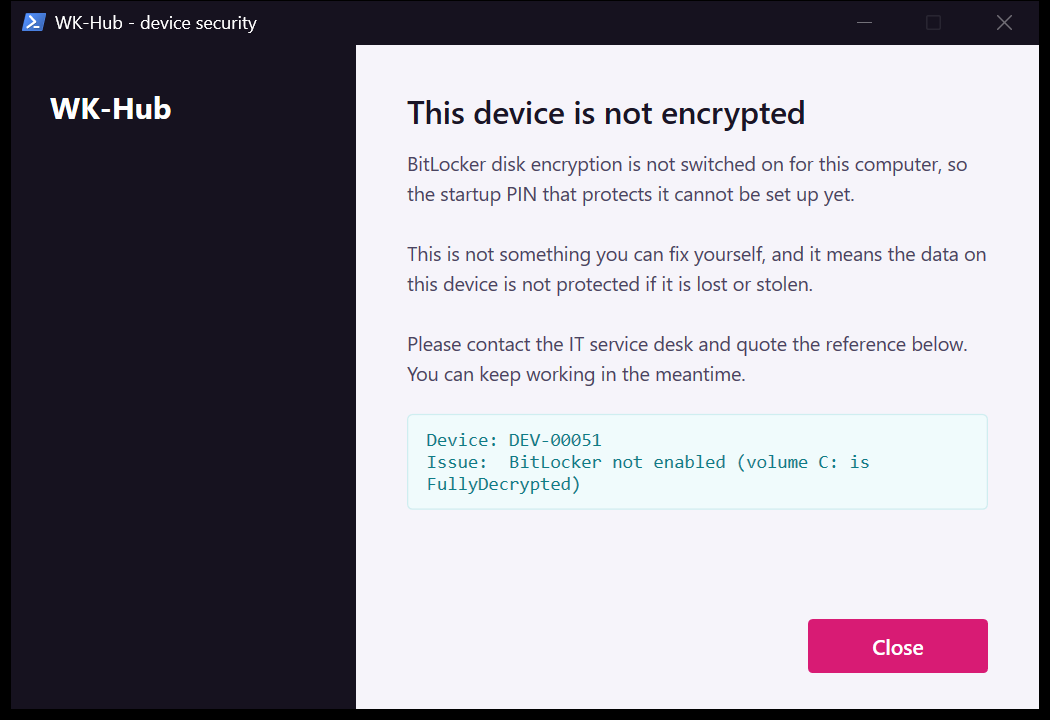
You can preview the main windows without admin rights and without changing anything:
.\Set-BitLockerPin.ps1 -PreviewUI              # the PIN dialog
.\Set-BitLockerPin.ps1 -PreviewNotEncrypted    # the "not encrypted" notice
.\Set-BitLockerPin.ps1 -PreviewManage          # the self-service reset window
When someone forgets the PIN
A forgotten startup PIN cannot be fixed before Windows starts. The user needs the 48-digit recovery key once to get past the pre-boot screen. The service desk can read it out, or the user can look it up from another device at myaccount.microsoft.com, under Devices, the device, then View BitLocker Keys. That works for devices the user owns, unless your tenant turns on Restrict non-admin users from recovering the BitLocker key(s) for their owned devices. From version 3.3.0, the enrolled user can do the rest: Start > Reset BitLocker PIN opens a small window, and choosing Reset my PIN leads to a new PIN dialog.
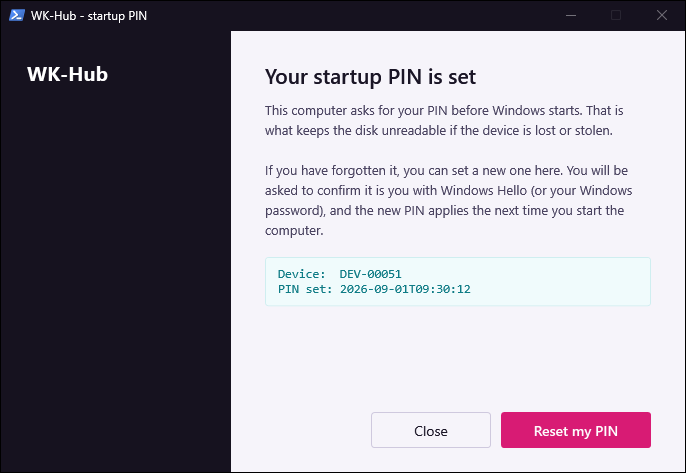
Any signed-in user can open that window, but nothing changes until three checks pass, in this order. Each check fails closed.
- The enrolled user. The signed-in Entra account must be the account that enrolled the device in Intune. Local accounts and anyone else are refused.
- The throttle. At most three completed resets per device in a rolling 24 hours. If the reset history cannot be read, the answer is no.
- Windows Hello. Declining or cancelling Hello stops the reset. The Windows password is asked for only when Hello is not available or fails with an error, never as a second guess after a declined or unanswered prompt.
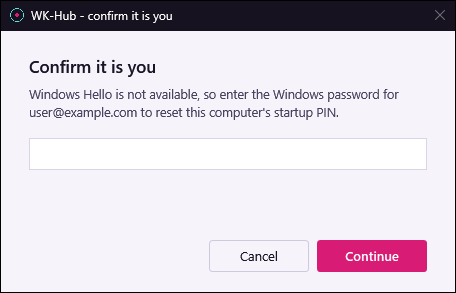
Gate decisions and reset results are written to the Application log as events 3200 to 3204 under the source WK-Hub-BitLockerPin, so you can collect them with Azure Monitor Agent, Windows Event Forwarding or a SIEM forwarder. Closing a window or cancelling the password prompt writes no event. INTUNE.md lists what each event means.
Three prerequisites decide whether self-service works:
- Windows Hello for Business on Entra-joined devices. The password fallback needs a cached password, and a user who has only ever signed in with Hello has none. For them, even the correct password fails with error 1326.
- User-driven enrollment. The identity check compares the signed-in user with the device's enrollment account. Self-deploying Autopilot, device enrollment manager accounts and provisioning packages enroll devices under another account or none, so those users go to the service desk.
- Re-enrollment when a device changes hands. A device handed to someone new keeps the previous owner's enrollment account. Changing the primary user in Intune does not update it, so re-enroll the device or send the new user to the service desk.
Be clear about what the Hello check protects against. It stops someone at an unlocked, unattended session from choosing a new PIN and locking the owner out. It does not defend against malware already running as the user.
Pilot, verify and roll back
Pilot with 5 to 10 devices, not a whole ring or department. Exclude shared devices and kiosks. Exclude devices you patch with Wake-on-LAN too, because a pre-boot PIN stops unattended restarts. BitLocker Network Unlock can start such devices without the PIN, but it works only on domain-joined devices on a wired network with a WDS server, and you set it up through Group Policy, not Intune.
On a pilot device, after the app installs, open an elevated PowerShell. The log folder is readable only by SYSTEM and Administrators. Replace WK-Hub if you renamed it:
# Did the payload land, and is the task registered?
Get-ItemProperty 'HKLM:\SOFTWARE\WK-Hub\BitLockerPin' | Format-List
Get-ScheduledTask -TaskName 'WK-Hub BitLocker PIN Enrollment' | Select-Object State

# Watch the dialog's own log while you lock the screen (Win+L) and unlock it.
Get-Content 'C:\ProgramData\WK-Hub\BitLockerPin\prompt.log' -Wait -Tail 5
Lock the screen and unlock it. The dialog should appear within about 20 seconds, or about two minutes after a fresh sign-in. Set a PIN, check the protectors as shown earlier, then restart and confirm that the pre-boot prompt appears and the PIN works. Finally, test the self-service reset as the enrolled user. A successful reset writes events 3200 and 3203.
To roll back, change the app's assignment to Uninstall. Do not delete the app in Intune, or devices keep the payload with nothing left to remove it. The uninstaller removes the tasks and the Start-menu shortcut and restores the backed-up policy values. It leaves the PIN in place, because removing a deployment tool should not quietly weaken a device. -RemovePinProtector is the explicit rollback to TPM-only. To use it from Intune, add it to the uninstall command before you change the assignment. It removes the PIN protector before it adds the TPM-only protector back, so it opens a short window in which only the recovery password can unlock the drive. Without a recovery password it refuses to remove the PIN, still removes the tasks and exits with code 1.
What it leaves on a device
| Location | Purpose |
|---|---|
C:\ProgramData\WK-Hub\BitLockerPin | Payload and logs, readable only by SYSTEM and Administrators. |
HKLM\SOFTWARE\WK-Hub\BitLockerPin | Version and state markers, including the reset history. |
Task WK-Hub BitLocker PIN Enrollment | Shows the dialog at logon and unlock. Users can see it but not start it. |
Task WK-Hub BitLocker PIN Reset | The self-service reset. It has no triggers, and signed-in users may start it. |
| Start-menu shortcut Reset BitLocker PIN | Starts the reset task. |
Event source WK-Hub-BitLockerPin | Reset audit events. It is kept on uninstall so past events stay readable. |
HKLM\SOFTWARE\Policies\Microsoft\FVE | Startup authentication values, backed up first and restored on uninstall. |
Two details matter for a tool that runs as SYSTEM. The dialog's own code never turns the PIN into an ordinary string, which cannot be wiped from memory: validation copies the PIN into an unmanaged buffer, reads the digits there and zeroes the buffer afterwards. Windows' own Add-BitLockerKeyProtector still converts it, because the WMI method behind it takes the PIN as a string, so this narrows the exposure but does not remove it. And the first log file the installer writes in the world-writable C:\Windows\Temp has an unguessable name, so a standard user cannot plant a link there in advance and redirect SYSTEM's writes.
Get the code
The app is open source on GitHub under the MIT license and runs on Windows PowerShell 5.1. Its 119 tests touch no BitLocker state. The repository has a ten-step quick start, a field-by-field Intune guide, a troubleshooting guide and an engineering reference.
Questions people ask
Does setting a BitLocker startup PIN need admin rights?
Adding the first PIN protector does, because it changes the drive's key protectors. That is why the app runs its dialog as SYSTEM through ServiceUI rather than as the user. Changing a PIN you already know does not: a standard user can run manage-bde -changepin C: or use Windows' own Change PIN option, as long as they enter the current PIN and no policy enables Disallow standard users from changing the PIN or password.
Why does my device boot without asking for the PIN?
Check for a TPM-only protector next to the TPM+PIN protector: while it exists, Windows ignores the PIN. Remove the Tpm protector, or let the remediation script do it. Suspended protection has the same effect, because a suspended drive never asks for a PIN.
Does this work with Autopilot?
Yes. Assign it as a normal required app and keep it off the Enrollment Status Page's blocking list. The dialog appears once the app has installed, or, if the drive is still encrypting, at the first logon or unlock after encryption finishes. Use user-driven Autopilot if you want self-service resets.
Can a standard user reset a forgotten BitLocker PIN?
Yes, from version 3.3.0. After one recovery-key unlock, the user who enrolled the device opens Start > Reset BitLocker PIN. The reset needs Windows Hello, or the Windows password where Hello is not available, and allows at most three completed resets in 24 hours.
What if the recovery key is not escrowed to Entra ID?
Then the app sets no PIN. Before the dialog opens, it looks for event 845, the record of a successful backup to Entra ID, and tries the escrow itself if the event is missing. If the escrow fails, it changes nothing and tries again at the next logon or unlock.
Can users choose letters, or a PIN shorter than six digits?
No. The dialog accepts 6 to 20 digits and nothing else, and uses your policy's minimum if it is higher. Leave Allow enhanced PINs for startup off: Microsoft warns that not all computers support enhanced PIN characters before Windows starts.
Comments